
How to Update Your Mobile Number
Updated 7 months Ago
Keeping your registered mobile number up to date on the FP Markets platform helps enhance the security of your account.
Procedure
Step 1: Log in to the Client Portal
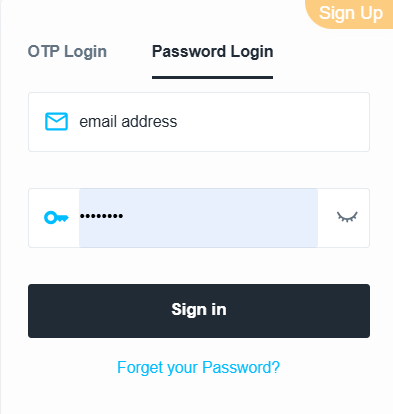
Please access the Client Portal and log in using one of the following methods:
- Your verified mobile number and one-time verification code
- Your registered email address and password
Step 2: Navigate to Settings

- Select “Profile” from the left-hand menu
- On the right-hand side, under the “Verification Details” section, click the second row labeled “Contact Information Verified”
Step 3: Update Information

- Click the settings icon on the far right of your current registered mobile number
- For security purposes, choose to receive a verification code via your current mobile number or email, then click “Send Code”
- Enter the verification code in the required field and click “Confirm”
- Enter the new mobile number you wish to update
- Click “Send Code,” enter the verification code, and click “Confirm”
If you are unable to receive the verification code, please contact customer support promptly.
Your mobile number will then be successfully updated.