
How to Log in to MT4/MT5 Web Platform
Updated 5 months Ago
With MetaTrader 4 (MT4) and MetaTrader 5 (MT5) WebTrader, you can log in directly via your browser without downloading any software, and trade forex, stocks, futures, and other financial instruments with access to real-time market data and technical analysis tools.
Steps
Method 1: Log in via Client Portal
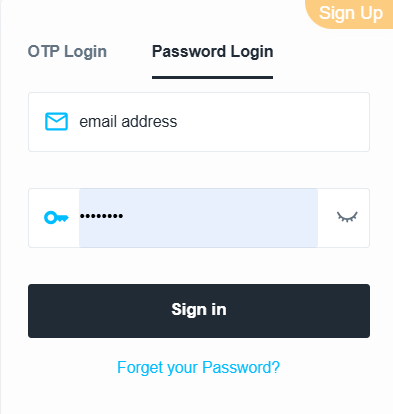
Please access the Client Portal and log in using one of the following methods:
- Your verified mobile number and one-time verification code
- Your registered email address and password
- After logging in, navigate to:
“Dashboard” → “Downloads” - In the list, select the WebTrader version for MT4 or MT5
- On the login page, enter:
- Trading account number (Live or Demo)
- Password
- Select the correct server:
- Live Accounts:
- MT4: FPMarketsLtd-Live5
- MT5: FPMarketsLtd-Live2
- Demo Accounts:
- FPMarketsLtd-Demo2
- Live Accounts:
- Click “Sign In” after verifying your details
- Once logged in, you can start trading immediately
Method 2: Direct Web Login
- Open the MT4/MT5 WebTrader login page
- Enter:
- Trading account number (Live or Demo)
- Password
- Select the appropriate server:
- Live: FPMarketsLtd-Live5 (MT4) / FPMarketsLtd-Live2 (MT5)
- Demo: FPMarketsLtd-Demo2
- Click “Sign In”
- Start trading once login is successful
Tips
- Always ensure the correct server is selected to avoid login issues
- Use a stable internet connection for smooth trading experience
- The web platform is ideal for quick access, while the desktop version offers more advanced features
Related Articles
- How to Change MT4/MT5 Platform Language
- How to Download MT4 Desktop Version
- How to Download MT5 Desktop Version
- How to Log in to MT4/MT5 Desktop Platform
- How to Place a New Order
- How to Modify Orders
- How to Update Your Trading Password
- How to Set an Investor (Read-Only) Password
- How to Add / Hide Trading Instruments
- How to Check Maximum Trading Volume
- How to Check Trading Hours
- How to View Trading History
- How to Save Trading History
- How to Close a Position
- How to Partially Close a Position
- Mac MT4/5 “App Damaged” Issue Guide